

Shoptet, WordPress and more
Where the chat code goes in Shoptet, WordPress, Shopify and Upgates, the Otto plugin for WordPress and the WooCommerce product feed.
Shoptet
- In the Shoptet admin open Appearance and content, then Editor and the HTML code tab.
- Paste the chat code into the Footer field and save.
- You find the Heureka feed address under Connections, XML feeds. In the Otto panel, paste it into Settings, under Catalogue.
A detailed guide with pictures is at ottoai.eu/otto-for-shoptet.
WordPress and WooCommerce
On WordPress you do not have to add the code by hand. The Otto plugin adds it, and with WooCommerce it also gives Otto a product feed.
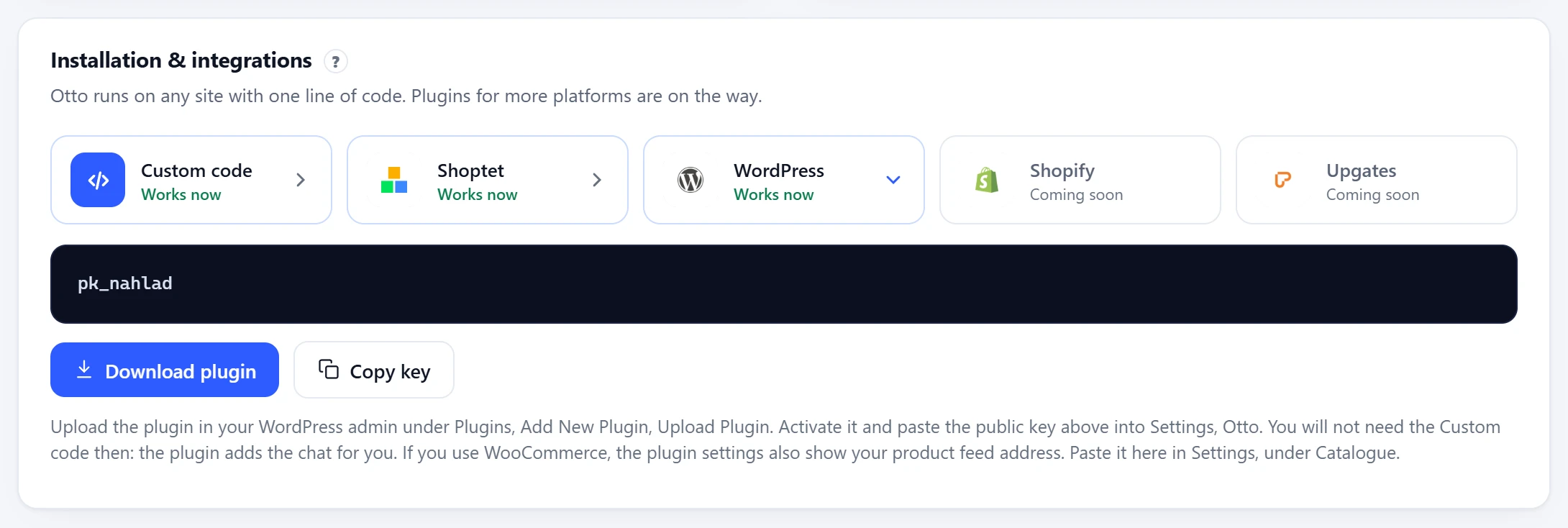
- In the panel, Overview, Installation & integrations, click the WordPress tile and Download plugin. It is also at ottoai.sk/otto-chat.zip.
- In the WordPress admin open Plugins, Add New Plugin, Upload Plugin, choose the downloaded file and activate the plugin.
- In Settings, Otto, paste the public key from the tile and verify it with the button next to the field.
- With WooCommerce, copy the product feed address from the same settings and paste it in the Otto panel into Settings, under Catalogue.
The plugin can turn the chat off for a while, hide it on chosen pages (such as checkout) and tell the chat who is signed in, including the phone number from WooCommerce billing details. It marks pages with a signed-in customer’s details so caches do not store them. The plugin’s own texts are in Slovak for now.
WooCommerce product feed
The feed is at https://your-shop.com/wp-json/otto-chat/v1/feed in Google Merchant format. It has published products that are not hidden from the catalogue, every variant on its own, prices as customers see them including a sale and its dates, availability, category and brand. The plugin keeps the finished feed for an hour and builds it again when a product or stock changes.
Shopify
In the admin open Online Store, Themes, Edit code on the current theme and the layout/theme.liquid file. Paste the chat code right before </body> and save. Send the catalogue through the catalogue API or a Google format feed. Guide: ottoai.eu/otto-for-shopify.
Upgates
Put the chat code into custom footer code and the Heureka feed into the Catalogue. The steps are at ottoai.eu/otto-for-upgates.
Custom website or another system
Add the code to the shared template before </body>. A guide for different setups is at ottoai.eu/otto-on-your-website.