

AI assistants via MCP
Ask ChatGPT, Claude or Gemini about your Otto chat. The assistant signs in to Otto with your account, no key needed.
On this page
Once you connect an AI assistant to Otto, you ask it about your chat in your own words: which questions Otto could not answer, how many conversations you had last month or what a customer wrote. For conversations it sends you a link that opens them right in the panel. The assistant connects over MCP (Model Context Protocol), an open standard supported by ChatGPT, Claude, Gemini and others.
How connecting works
- In the assistant you add the Otto server with the address
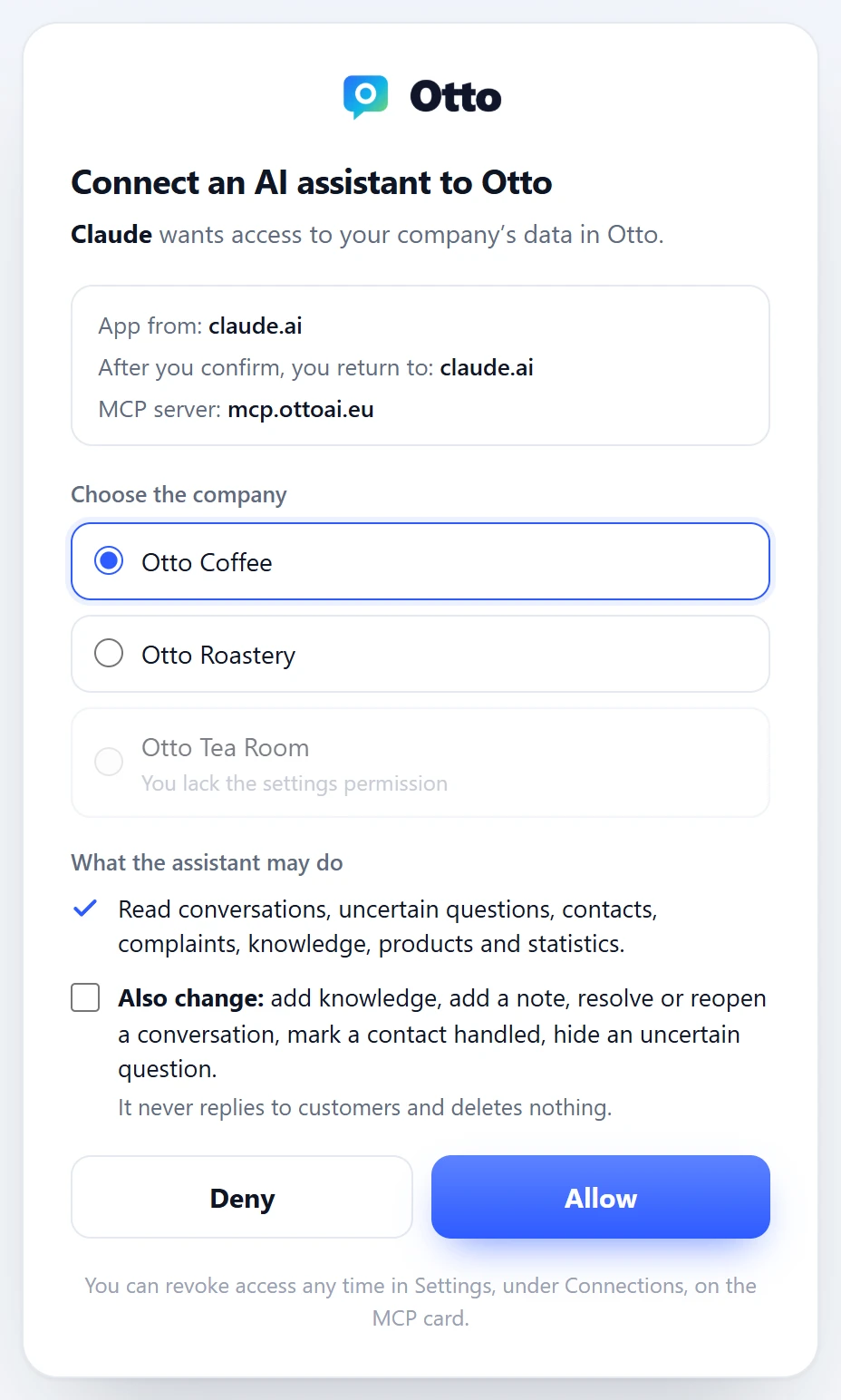
https://mcp.ottoai.eu.mcp.ottoai.skandmcp.ottoai.czwork too, the sign-in is then in Slovak or Czech. - The assistant opens the Otto sign-in. You sign in with your account, pick the company and decide whether the assistant may only read or also change things. The assistant never sees your password.
- You ask. The assistant sees the chosen company’s data until you disconnect it, for at most 90 days. Then it signs in again.
MCP is part of the Business and Custom plans. The company owner or a colleague with the settings permission can connect an assistant. We email the owner about every new connection.
What to ask
- “Which questions could Otto not answer this week? Suggest what to add to the knowledge.”
- “How many conversations did we have in October, and how many did Otto handle on its own?”
- “Which customers asked for a person and got no reply?”
- “What did the customer write in the latest conversation? Send me the link.”
- “Which complaints are waiting for a decision?”
The assistant also offers three ready-made prompts: Weekly chat report, What to add to knowledge and Customers nobody answered.
What the assistant may do
Without the change permission the assistant only reads: conversations, uncertain questions, contacts, complaints, knowledge, products and statistics. When you tick Also change at sign-in, it can add knowledge, add an internal note, add or remove a conversation tag, resolve or reopen a conversation, mark a contact handled and hide an uncertain question. The assistant usually asks you before a change. It never replies to customers and deletes nothing.
Another assistant or program
An assistant that supports MCP with OAuth sign-in connects the same way: the address https://mcp.ottoai.eu and the Otto sign-in. A program that cannot sign in gets a key. You create it in the panel under Settings, Connections, on the MCP card, and the program sends it in the Authorization header:
{
  "mcpServers": {
    "otto": {
      "type": "http",
      "url": "https://mcp.ottoai.eu",
      "headers": { "Authorization": "Bearer YOUR_KEY" }
    }
  }
}
Tools, ready-made prompts and errors are in MCP for developers.
Disconnecting
You see connected assistants in the panel under Settings, Connections, on the MCP card. Disconnect removes the assistant’s access at once. Access also ends when you take the settings permission away from a colleague or remove them from the company, and when the person who connected the assistant changes their password or signs out everywhere else. A connection lasts at most 90 days, then the assistant signs in again.
For every new connection we email the company owner who connected the assistant and what it may do. If you don’t know about a connection, disconnect it.